Getting Started
There are two ways to use the MarketCheck MCP Server: connect to the hosted server (no installation needed) or run it locally from source. Both require a MarketCheck API key.
Get Your API Key
Sign up at the Marketcheck Developers Portal to create an account and get your API key.
Option 1: Hosted Server (Recommended)
MarketCheck hosts a production MCP server that you can connect to directly — no cloning, no Python, no dependencies.
For a step-by-step walkthrough with screenshots, see the MCP Connector Setup Guide.
Server URL:
https://api.marketcheck.com/mcp?api_key=YOUR_API_KEY
Claude Desktop (Recommended)
Connect in three steps via the Connectors UI:
Step 1 — Add the connector
Navigate to Customize → Connectors and select Add Custom Connector. Fill in:
| Field | Value |
|---|---|
| Name | Marketcheck MCP |
| URL | https://api.marketcheck.com/mcp?api_key=YOUR_API_KEY |
Click Add to save.
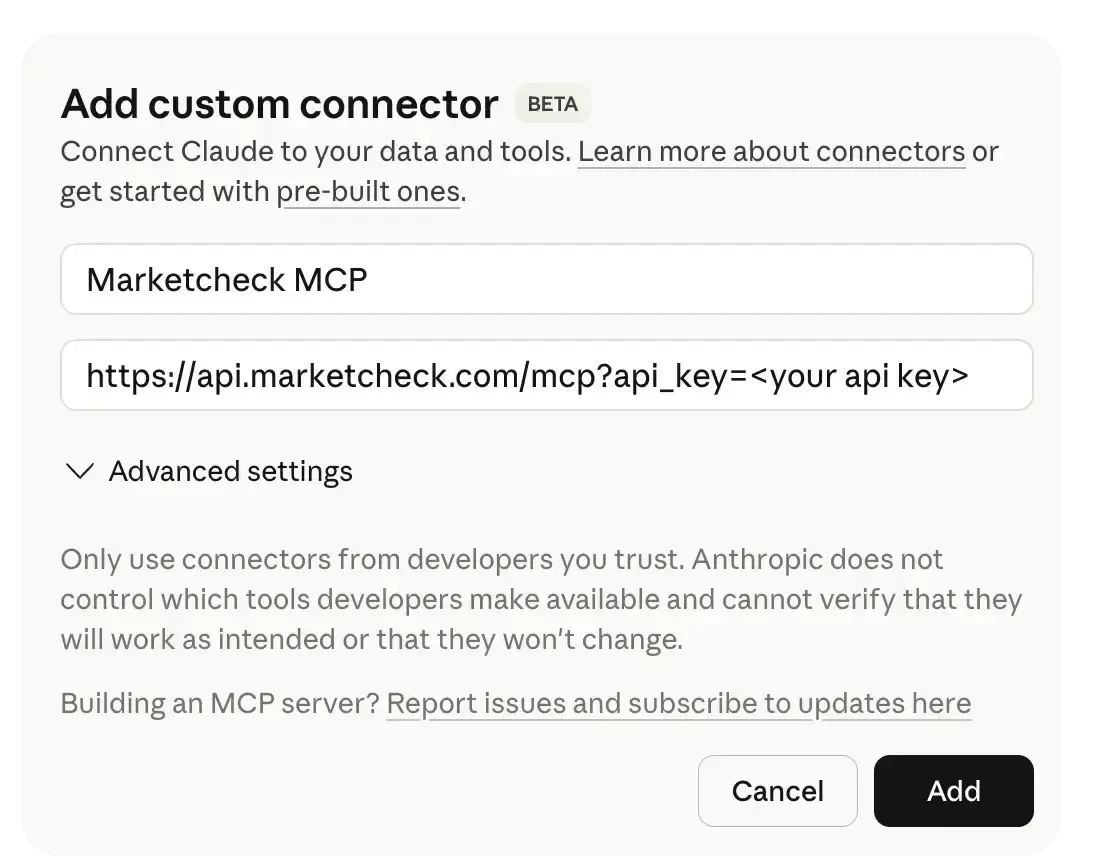
Step 2 — Grant tool permissions
Go to Customize → Connectors → Marketcheck MCP → Tool Permissions. In the Other tools section, click the dropdown and select Always Allow. This grants permission to all MarketCheck tools automatically.
Step 3 — Start chatting
Open a new chat and ask anything — the MarketCheck tools are now available.
claude_desktop_config.json is not supported.Alternative: Using mcp-remote
If you prefer a config-file-based setup, you can use mcp-remote as a local stdio bridge.
Prerequisites: Node.js 18+ is required. Check your version with node --version.
Install mcp-remote globally:
npm install -g mcp-remote
Then add to your config file:
- macOS:
~/Library/Application Support/Claude/claude_desktop_config.json - Windows:
%APPDATA%\Claude\claude_desktop_config.json
{
  "mcpServers": {
    "marketcheck": {
      "command": "npx",
      "args": [
        "mcp-remote",
        "https://api.marketcheck.com/mcp?api_key=YOUR_API_KEY"
      ]
    }
  }
}
Cursor / Windsurf
Add https://api.marketcheck.com/mcp?api_key=YOUR_API_KEY as a remote MCP server URL in your editor's MCP settings.
Any HTTP MCP Client
Point your client to https://api.marketcheck.com/mcp?api_key=YOUR_API_KEY.
Option 2: Run Locally
If you prefer to self-host or need to customize the server, you can run it from source.
Prerequisites
- Python 3.12+ — The server requires Python 3.12 or later
- MarketCheck API key — Get one from the Marketcheck Developers Portal
- UV package manager (recommended) — Fast Python package manager. Install with
curl -LsSf https://astral.sh/uv/install.sh | sh
Installation
Clone the repository and install dependencies:
git clone https://github.com/MarketcheckHub/marketcheck-api-mcp.git
cd marketcheck-api-mcp

# Using UV (recommended)
uv sync

# Or using pip
pip install -e .
API Key Configuration
Set your API key as an environment variable:
export MARKETCHECK_API_KEY=your_key
~/.bashrc, ~/.zshrc) so it persists across sessions.Running the Server
STDIO Mode (Default)
Use this mode with desktop MCP clients like Claude Desktop and Cursor:
python server.py
The server communicates through standard input/output. The MCP client manages the server process lifecycle automatically.
HTTP Mode
Use this mode for web applications and remote deployments:
python server.py --mode streamable-http --port 8000
The server starts an HTTP endpoint at http://localhost:8000 that accepts MCP protocol messages.
Additional Options
python server.py --help          # Show all available options
python server.py --debug         # Enable debug logging
python server.py --mode streamable-http --host 0.0.0.0  # Listen on all interfaces (HTTP mode)
Client Configuration (Local)
Claude Desktop
Add the following to your Claude Desktop configuration file:
- macOS:
~/Library/Application Support/Claude/claude_desktop_config.json - Windows:
%APPDATA%\Claude\claude_desktop_config.json
{
  "mcpServers": {
    "marketcheck": {
      "command": "python",
      "args": ["/path/to/marketcheck-api-mcp/server.py"],
      "env": {
        "MARKETCHECK_API_KEY": "your_api_key_here"
      }
    }
  }
}
/path/to/marketcheck-api-mcp/server.py with the actual path where you cloned the repository. If using UV, use uv run python as the command instead of python.Claude Desktop with UV
If you installed dependencies with UV, configure Claude Desktop to use UV's Python:
{
  "mcpServers": {
    "marketcheck": {
      "command": "uv",
      "args": ["run", "--directory", "/path/to/marketcheck-api-mcp", "python", "server.py"],
      "env": {
        "MARKETCHECK_API_KEY": "your_api_key_here"
      }
    }
  }
}
Cursor / Windsurf
These editors support MCP servers through their settings. Add the server configuration in your editor's MCP settings using the same command and arguments as above.
HTTP Client Configuration
For HTTP transport, point your MCP client to the server URL:
http://localhost:8000/mcp
Ensure the MARKETCHECK_API_KEY environment variable is set when starting the server.
Docker Deployment
For containerized deployments:
# Build the image
docker build -t marketcheck-api-mcp .

# Run with HTTP transport (default mode in the container)
docker run -p 8000:8000 \
  -e MARKETCHECK_API_KEY=your_api_key \
  marketcheck-api-mcp
Verify the Setup
Once configured, test by asking your AI assistant a simple question:
"Search for Toyota Camry listings in California"
The assistant should call the search_active_cars tool and return live inventory results. If you see results, the server is working correctly.
Troubleshooting
| Issue | Solution |
|---|---|
| "Server not found" in Claude Desktop | Verify the config in claude_desktop_config.json is correct and the file has no JSON syntax errors |
| Empty search results | Run a facets query first to discover valid filter values — values like make and model must match exactly |
| Authentication error | Confirm your API key is valid. Test it directly: curl "https://api.marketcheck.com/v2/search/car/active?api_key=YOUR_KEY&rows=1" |
| Python not found (local only) | Ensure Python 3.12+ is on your PATH. Try python3 or the full path to your Python binary |
Environment Variables Reference (Local Only)
| Variable | Required | Default | Description |
|---|---|---|---|
MARKETCHECK_API_KEY | Yes | — | Your MarketCheck API key |
PORT | No | 8000 | HTTP server port (HTTP mode only) |
DEBUG | No | false | Enable verbose debug logging |
See Also
- Tools — Explore all nine tools
- Workflows & Use Cases — Common patterns for vehicle research
- Troubleshooting — Common issues and solutions
Introduction
MarketCheck MCP Server gives AI applications and LLMs direct access to automotive market data through the Model Context Protocol, enabling natural-language vehicle search, price prediction, and market analytics across US, Canada, and UK markets.
Search Active Cars
Full reference for the search_active_cars tool — search live vehicle inventory across US and Canada with 80+ filter parameters, faceted search, and dealer-specific inventory retrieval.